
In July 2026 Intopia joined Figma at The Outlook Festival to share an accessibility skill for Figma Make that helps teams generate more accessible prototypes directly from their designs.
This page is the home for everything from the session. Below you’ll find a short summary of what we covered, a link to the skill on GitHub so you can try it yourself, a few extra links worth following and a plain-text version of the slides.
What we covered in the workshop
Chris Pigden and Claire Webber (Intopia) joined forces with Duncan Farquharson (Figma) for a behind-the-scenes look at a new accessibility skill Intopia created for Figma Make.
The skill acts as a rulebook the AI follows as it generates, so prototypes come out with proper semantic structure, keyboard support, contrast and focus order from the first prompt.
We explored how the skill was conceived, built, tested and refined, the challenges encountered, the ethics, the design and technical decisions that shaped the solution and the role human accessibility expertise played throughout the process.
In our own testing, prototypes built with the skill passed 91.1% of accessibility test cases from a text prompt, up from 47.0% without it. From a design prompt, 97.3%, up from 49.3%. We also discussed the limitations of AI in the process, and where human review is still vital.
Get the skill and try it yourself
The skill is on GitHub. Install it once and it’s available to use in every Figma Make project. Simply call the skill from a prompt. For example, add “Use /intopia-a11y-guideline to make it accessible.” to a prompt and the agent will use the skill to build your design.
Download the skill here:
GitHub – Intopia/intopia-a11y-guideline: Accessibility skill developed for Figma Make
Installing intopia-a11y-guideline into Figma Make
-
Download the raw
SKILL.mdfrom GitHub.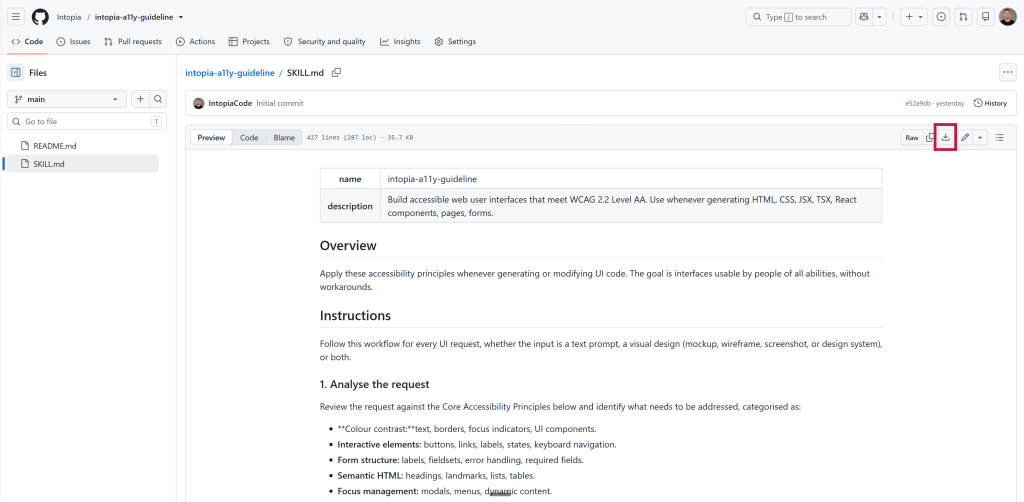
-
Open Figma Make.
-
Upload
SKILL.mdinto the project. Go to Add context > Skills > Add skills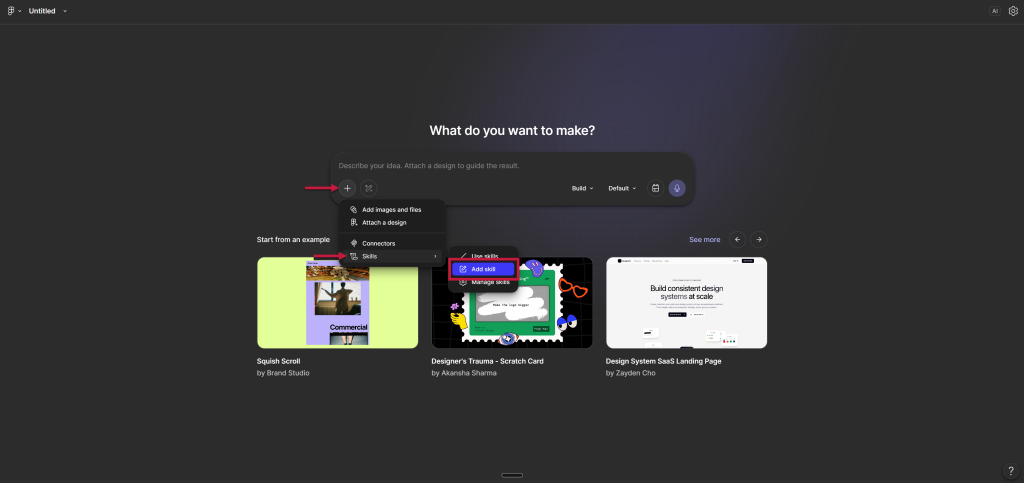
-
Confirm it’s listed as an active file. Go to Add context > Skills > Manage skills
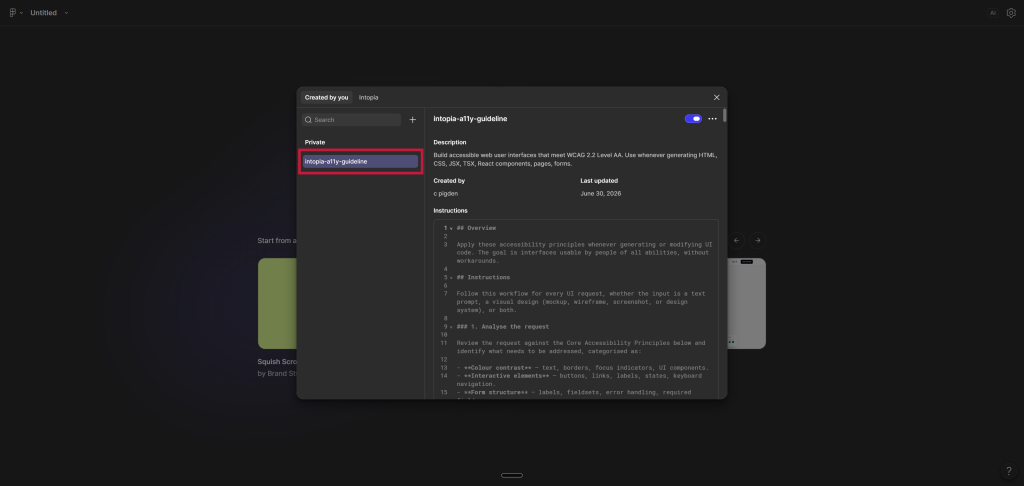
-
Invoke it manually. Type “Use /intopia-a11y-guideline to make it accessible.” in your prompt to call the skill.
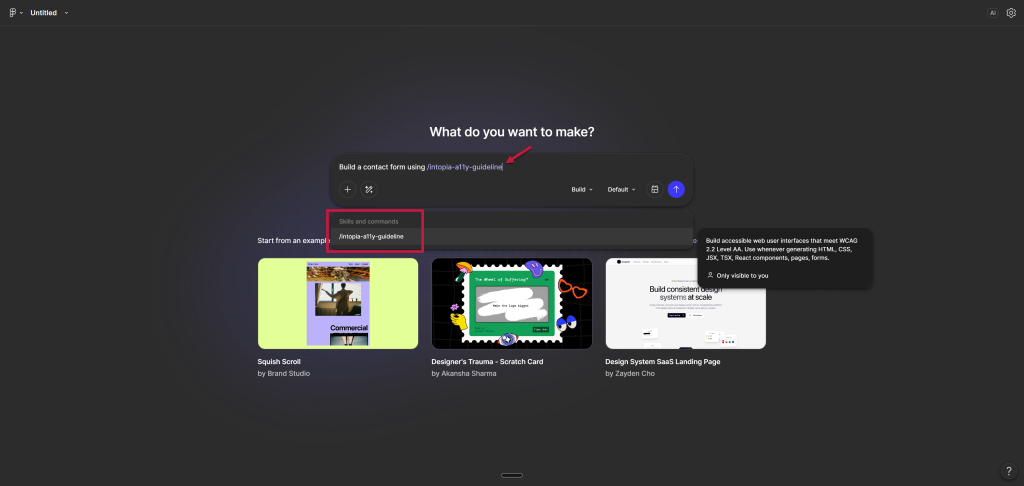
Resources
-
Can AI Agent Skills Help Developers Ship Accessible Code? – Intopia
- Building accessibility into a canvas based product – Figma
Appendix: Accessible text version of the presentation
This text version provides an accessible alternative to the presentation slides. It includes the key information conveyed through text, diagrams, screenshots and data. All figures are from Intopia’s own testing and have not been independently validated.
Figma x Intopia: Building Accessibility into AI-Generated Prototypes
A workshop on how Intopia built an accessibility skill for Figma Make, how it was tested, and what the results showed. Presented by Claire Webber, Chris Pigden and Duncan Farquharson (Figma). Running time: approximately one hour.
The problem
The way digital products get built is changing. Designers increasingly create working prototypes directly with AI, development workflows are becoming more automated, and the traditional hand-off between design and engineering is evolving. In this changing workflow, accessibility can easily be overlooked or lost.
Our testing found that AI-generated prototypes failed between 50% and 75% of accessibility tests when generated without accessibility guidance.
Because AI generates interfaces at scale, a single inaccessible pattern can be repeated across an entire prototype, multiplying accessibility problems rather than fixing them.
Common issues include:
- Page structure. Content lacks a logical heading hierarchy or landmark structure, making navigation difficult for screen reader users.
- Semantic markup. Components appear correct visually but use incorrect HTML or ARIA. For example, a custom checkbox may look selected but is not announced correctly by assistive technology because it is not implemented as a real checkbox.
- Forms. Form fields are missing labels, instructions, required-field indicators or accessible error handling.
- Keyboard access. Interactive controls cannot be reached or operated using only a keyboard.
- Colour contrast. Text and interface elements do not provide sufficient contrast for many people with low vision.
- Responsive design. Layouts break, overlap or hide information when viewed on smaller screens or when text is enlarged.
One challenge is that static Figma designs cannot be tested with assistive technologies. Figma Make converts designs into working prototypes, allowing accessibility to be evaluated much earlier in the design process. By improving the accessibility of these generated prototypes, teams can test with assistive technologies before development begins.
The solution
The presentation introduces the use of AI Skills.
A skill provides additional instructions to an AI agent. It typically consists of a SKILL.md file together with supporting references, scripts and assets. Skills can be invoked manually or used automatically by the AI agent to influence how it generates code.
Like all AI systems, skills have limitations:
- Results are not deterministic.
- Output quality depends on both the underlying model and the prompt.
- Skills consume additional tokens.
- Automatic invocation cannot always be relied upon.
The Intopia Web Accessibility Skill
Intopia developed a web accessibility skill that:
- stores agent instructions in a SKILL.md file
- references accessibility acceptance criteria and implementation examples for common components
- loads only relevant guidance into the model’s context
- includes a colour contrast checking script.
Adapting the skill for Figma Make
The existing accessibility skill needed to be redesigned for use inside Figma Make because its environment differs from a traditional coding workflow.
The adapted version:
- works within Figma Make’s single SKILL.md file limitation
- presents accessibility guidance efficiently within that constraint
- assumes many users are designers rather than developers
- supports prototypes that sometimes run inside Figma rather than a standard browser
- reduces the likelihood that the AI agent overwrites earlier accessibility decisions as the prototype evolves.
The Intopia A11y Guideline Skill
The adapted skill performs several tasks during prototype generation:
- Creates an accessibility.md file that records the accessibility plan.
- Tests colour combinations for sufficient contrast.
- Generates the prototype following the accessibility plan.
- Reports the accessibility decisions it has made.
- Injects the Intopia Accessibility Toolbar into the prototype.
- Allows the user to review accessibility and address any remaining issues.
How we tested it
The accessibility skill was evaluated using three complementary approaches:
- comparison benchmarking
- guerrilla testing with designers
- testing with people who use assistive technology.
Benchmarking
The benchmarking used Claude Sonnet 4.6.
Each benchmark was generated both without the accessibility skill (baseline) and with the skill (skill-guided). Three generations were produced for each scenario and assessed against a pass/fail accessibility test plan.
For example, one test case assessed whether drag-and-drop interactions included a keyboard-operable alternative, as required by WCAG Success Criterion 2.1.1. Across one benchmark set, 35 tests passed and 13 failed.
Benchmark 1: Mobile website
This benchmark generated a mobile website from a text prompt.
Average accessibility pass rate:
- Baseline: 47.0%
- Skill-guided: 91.1%
This represented an improvement of approximately 44 percentage points.
Benchmark 2: Puppy website
This benchmark started from an existing Figma design that deliberately contained visual accessibility issues.
Average accessibility pass rate:
- Baseline: 49.3%
- Skill-guided: 97.3%
This represented an improvement of approximately 48 percentage points.
Accessibility improvements were measured across many aspects of the interface, including page structure, navigation, forms, keyboard support, responsive behaviour, visual design and content organisation. Most categories improved substantially, with several increasing from no successful tests to complete success.
Benchmark 3: Complex application
The third benchmark generated a Kanban-style project management tool containing advanced interactions.
Average accessibility pass rate:
- Baseline: 24.4%
- Skill-guided: 74.5%
This represented an improvement of approximately 50 percentage points.
The largest improvements were seen in keyboard operation, drag-and-drop alternatives, navigation, forms and overall page structure. Some categories showed more modest improvement, demonstrating that complex interfaces remain challenging for current AI systems.
Guerrilla testing with designers
Designers were invited to use the accessibility skill in their own work and provide feedback.
- Twenty-two people registered.
- Nineteen completed a short sentiment survey.
- Eight completed a detailed tester survey.
Testing with assistive technology users
The team also created a prototype of an internal reporting dashboard and conducted unmoderated testing with two screen reader users, followed by interviews.
Both participants were able to use the dashboard with JAWS. Their feedback focused primarily on minor usability improvements rather than barriers that prevented successful completion of tasks.
Because the accessibility baseline was already strong, participants were able to provide feedback about the overall user experience rather than identifying fundamental accessibility failures.
What we learned
Tester feedback
Among the designers who completed the evaluation:
- seven out of eight believed accessibility was improved when using the skill
- seven out of eight said they learned something about accessibility through the Accessibility Toolbar
- all eight said they would use the skill again.
What worked well
Participants particularly valued:
- automatic accessibility annotations within generated prototypes
- clear improvements when comparing prototypes created with and without the skill
- time savings by reducing the need to switch to external accessibility testing tools during prototyping.
Opportunities for improvement
Feedback highlighted several areas for future development:
- improving the usability of the Accessibility Toolbar
- providing clearer onboarding and documentation
- expanding automated accessibility checks
- offering more support for screen reader readiness
- allowing the toolbar to be hidden without removing it entirely.
Key learnings
The evaluation demonstrated several important findings:
- The accessibility skill consistently improved the quality of AI-generated code.
- Results remained variable because of the probabilistic nature of large language models.
- The skill performed better in some accessibility areas than others.
- Complex prompts benefit from careful planning and structured guidance.
Overall, the testing showed that the skill can substantially improve the accessibility baseline of AI-generated prototypes. However, it is an accessibility aid rather than a guarantee. Human review and testing with people who use assistive technology remain essential parts of creating accessible digital products.
Accessibility at Figma
The presentation concludes by noting that accessibility is also embedded within Figma’s own product development process. This includes accessibility considerations within the design system, usability testing and dedicated accessibility audits for new features.
Resources
The presentation concluded with links to the slides, supporting resources and the Intopia accessibility skill.
Acknowledgements
Thank you to the testers who contributed their time and expertise, including Clarence Wee, Alan Ong, Corina Reitemeyer, Daniel Setiawan, Angeline Mayasari and Dotti Li, along with everyone else who participated in the surveys and testing activities.